
SUM Formula in Excel क्या है?
SUM Formula Microsoft Excel का सबसे अधिक उपयोग किया जाने वाला Formula है। इसका उपयोग कई Numbers को जोड़कर (Addition करके) कुल योग (Total) निकालने के लिए किया जाता है।
यदि आपको Sales, Salary, Expenses, Marks या किसी भी प्रकार के Numbers का Total निकालना हो, तो SUM Formula सबसे आसान और तेज़ तरीका है।
SUM Formula का कार्य: कई Numbers को जोड़कर Total निकालना।
SUM Formula का Syntax
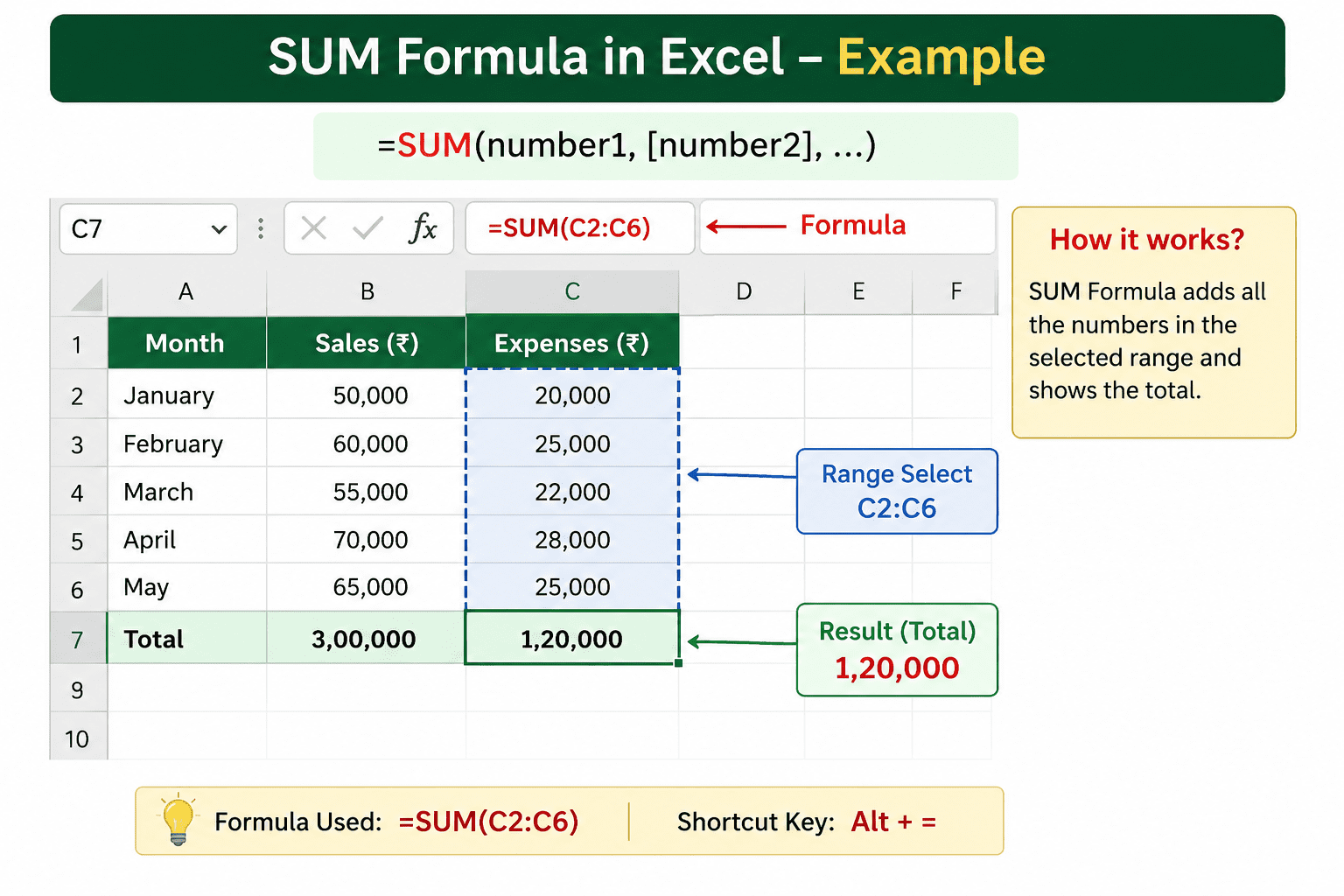
=SUM(number1, number2, ...)या
=SUM(A1:A10)SUM Formula का सबसे आसान उदाहरण
मान लीजिए आपके पास निम्न डेटा है:
| Month | Sales |
|---|---|
| January | 10000 |
| February | 12000 |
| March | 15000 |
यदि आप Total Sales निकालना चाहते हैं:
=SUM(B2:B4)Result:
37000Excel में SUM Formula कैसे लगाएँ?
Step 1:
जिस Cell में Total चाहिए उसे Select करें।
Step 2:
Formula लिखें:
=SUM(B2:B10)Step 3:
Enter Press करें।
Excel तुरंत Total दिखा देगा।
SUM Formula के Practical Examples
Example 1: Student Marks Total
| Subject | Marks |
|---|---|
| Hindi | 75 |
| English | 80 |
| Maths | 90 |
| Science | 85 |
Formula:
=SUM(B2:B5)Result:
330Example 2: Monthly Expense Calculation
| Expense | Amount |
|---|---|
| Rent | 10000 |
| Electricity | 2000 |
| Internet | 1000 |
| Transport | 3000 |
Formula:
=SUM(B2:B5)Result:
16000Example 3: Salary Sheet Total
| Employee | Salary |
|---|---|
| Rahul | 20000 |
| Amit | 25000 |
| Neha | 22000 |
Formula:
=SUM(B2:B4)Result:
67000Multiple Cells को जोड़ना
यदि Cells अलग-अलग स्थान पर हों:
=SUM(A1,A5,A10)यह तीनों Cells का Total देगा।
Multiple Ranges का Total
=SUM(A1:A5,C1:C5)Excel दोनों Ranges का Total जोड़ देगा।
AutoSum Feature क्या है?
Excel में AutoSum नाम का Feature होता है जो SUM Formula को स्वतः लगा देता है।
Steps:
- Cell Select करें
- Home Tab → AutoSum
- Enter दबाएँ
Shortcut:
Alt + =SUM Formula के फायदे
✔ समय की बचत
Manual Addition की आवश्यकता नहीं होती।
✔ Accuracy
Calculation Errors कम हो जाते हैं।
✔ बड़े Data पर उपयोगी
हजारों Records का Total आसानी से निकाल सकते हैं।
✔ Accounting में उपयोगी
Salary Sheet, GST Calculation और Reports में सबसे अधिक उपयोग।
SUM Formula में होने वाली सामान्य गलतियाँ
1. गलत Range चुनना
गलत:
=SUM(B2:B20)जब Data केवल B2:B10 तक हो।
2. Text Values शामिल करना
यदि Cells में Text है तो Total गलत आ सकता है।
3. Empty Cells का भ्रम
SUM Formula Empty Cells को Ignore करता है।
SUM Formula और AutoSum में अंतर
| SUM Formula | AutoSum |
|---|---|
| Manual Formula | Automatic Formula |
| Flexible | Faster |
| Advanced Users | Beginners |
Accounting में SUM Formula का उपयोग
अकाउंटेंट्स द्वारा SUM Formula का उपयोग:
- Cash Book
- Sales Register
- Purchase Register
- Salary Sheet
- GST Working
- Profit & Loss Reports
में किया जाता है।
Frequently Asked Questions (FAQ)
SUM Formula क्या काम करता है?
SUM Formula कई Numbers को जोड़कर Total निकालता है।
SUM Formula का Shortcut क्या है?
Alt + =
क्या SUM Formula Text Values को जोड़ता है?
नहीं, SUM Formula केवल Numeric Values को जोड़ता है।
Excel में Total निकालने का सबसे आसान तरीका क्या है?
SUM Formula या AutoSum Feature।
क्या SUM Formula Accounting में उपयोग होता है?
हाँ, Accounting और MIS Reporting में सबसे अधिक उपयोग होने वाले Formulas में से एक है।
निष्कर्ष
SUM Formula Excel का सबसे महत्वपूर्ण और सबसे अधिक उपयोग किया जाने वाला Formula है। यदि आप Excel सीखना शुरू कर रहे हैं, तो SUM Formula आपका पहला Formula होना चाहिए। इसकी मदद से आप Marks, Salary, Expenses, Sales और Accounting Reports का Total कुछ सेकंड में निकाल सकते हैं।